
Geo STUDIO Pro 4.1 Release Notes
- May 9
- 20 min read
⦁ The application and Geo Format VERSION have increased to 4100 (4.1)
⦁ This version has updated the Aechelon Technology HIE format support to the latest version used by Aechelon's pC-Nova image generator. This introduces new Node types and properties to existing Geo nodes as well as new functionality in different areas in order to support this. Some of these changes can be thought of as purely related to HIE format import/export while some benefit other supported formats and basic Geo functionality. Within this document, the scope of these new features will be specified.
NOTE: All HIE format nodes and constructs are supported in Geo's native .geo format.
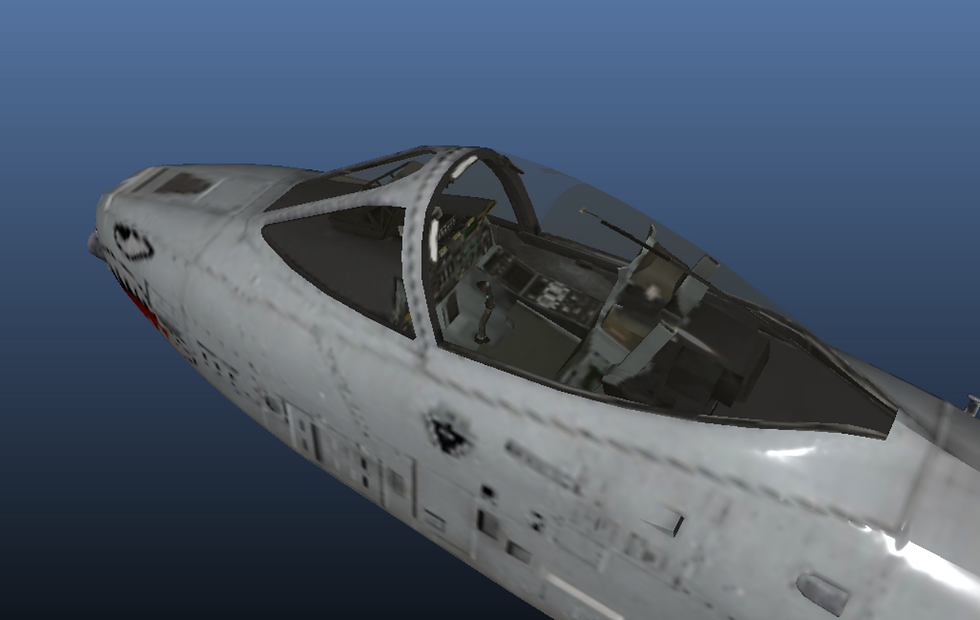
⦁ The GLTF importer now sorts meshes with transparency. Moving these meshes to the end of the model so that transparency can be resolved correctly. For example in the screen shot below the interior cockpit detail was previously not visible through the transparent canopy...
⦁ Added a new DepthBufferGroup grouping node. This is a HIE format node type. This node controls zbuffer usage for its children. There are three multually-exclusive properties...
NoDepth - Disables ZBuffer for its children.
NoDepthWrite - Depth testing is allowed but writing to the ZBuffer is turned off.
NoDepthWriteBase - Depth testing is allowed for primary passes, but writing to the ZBuffer is turned off.
Exporting this node to OpenFlight, Designer's Workbench DWB, GLTF or OBJ will output a generic Group node with no DepthBuffer properties.
⦁ Added a new NamedSwitch grouping node. This maps to a HIE format node type. The node can only have 1 child with the child being displayed if the node has a particular type and state value at runtime. The NamedSwitch type can be one of the following types...
Analog Control - A user-defined (and named) variable
Time of Day - Dawn, Day, Dusk, Night
Flood Lights - On/Off
Fog - On/Off
Precipitation - Clear, Rain, Snow, Ice, Patchy Rain, Patchy Snow, Patchy Ice, Sand
Signage Illumination - On/Off
Consider a NamedSwitch of type TimeOfDay - a NamedSwitch of this type can have one or up to all four TOD options set - meaning that the switch will display it's child if, for example, TOD is Dawn, Day and Dusk, but not Night. The Aechelon Image Generator manages runtime variables (like ToD) to control scene-graph visibility. This node was built using Geo's User node extension mechanism.
⦁ Added a new Environmental Settings attribute tab to the Header Node's list of properties. This tab consists of a number of global runtime fields that are a model-time surrogates for typical simulator runtime variables. These properties directly map to the "named" drivers in the NamedSwitch node (ie TimeOfDay, Precipitation etc.). It was important to add these model-time fallback settings (and implement the NamedSwitch node's runtime behavior so that Geo didn't blindly render all switches, all of the time.
⦁ Some of the Group-type node icons have reverted to their Geo STUDIO 3.6 color scheme if the app theme is Dark Mode. This makes it easier (and quicker) to differentiate Group types in the tree view. This was a result of customer feedback (It also looks better). The icons are modified from the Light Mode icon equivalents for better contrast.
⦁ There was a bug with Tree View mouse dragging while reparenting the scene graph. If you dragged a node to the top of the Tree View area and started to clip the dragged image at the top of the window - the whole tree view panel jumped out of its normal docked location and reposition itself over the iconbar!. Happily some TLC fixed that behavior! :-)
⦁ The existing Geo Switch Node now has two new properties - SwitchType and SwitchNamedType. SwitchType can be either BitField Mask (the current Switch behavior and the default) or Named Token. If its SwitchType is "Named Token" then its switching behavior will be determined by Hie Switching rules. This enables Switch Nodes to support Hie Format Switch Nodes which that can be set to switch on named types like the NamedSwitch node. Whereas the Hie NamedSwitch node can only have 1 child - a Hie Switch Node has N children depending on what type of Named token it is. The NamedTypes are..
Analog Control - A user-defined (and named) variable
Time of Day - Night, Dawn, Day, Dusk
Precipitation - Clear, Rain, Snow
Flood Lights - On/Off
Covert Feature - On/Off
Fog- On/Off
⦁ A Switch node of NamedType: "Time of Day" expects to have FOUR group children. The child order is important for a Hie Switch Node and must be in the following order: Night, Dawn, Day and Dusk. This means that if the Header Node's environmental setting for TimeOfDay is "Day" then a Switch node of this type will display its third child (which is expected to represent daytime geometry). Geo doesn't enforce the number of Switch node children but will enforce the runtime rules if the NamedType is "Time of Day". This means that if the Switch Node only has two children - nothing will be displayed because a third child (for day geometry) doesn't exist.
⦁ A Switch node of NamedType: "Precipitation" expects to have THREE group children. The child order is important for a Hie Switch Node and must be in the following order: Clear, Rain and Snow. This means that if the Header Node's environmental setting for Precipitation is "Rain" then a Switch node of this type will display its second child (which is expected to represent Rain geometry). Geo doesn't enforce the number of Switch node children but will enforce the runtime rules if the NamedType is "Precipitation ". This means that if the Switch Node only has one child - nothing will be displayed because a second child (for rain geometry) doesn't exist. Also if the Header Node's Precipitation value is anything other that Clear, Rain or Snow (i.e. Patchy Rain) then no children of the Switch Node will be displayed.
⦁ A Switch node of NamedType: "Fog" expects to have TWO group children. The child order is important for a Hie Switch Node and must be in the following order: NoFog and Fog, This means that if the Header Node's environmental setting for Fog is ON then a Switch node of this type will display its second child (which is expected to represent Fog geometry). Geo doesn't enforce the number of Switch node children but will enforce the runtime rules if the NamedType is "Fog". This means that if the Switch Node only has one child - nothing will be displayed because a second child (for Fog geometry) doesn't exist.
⦁ A Switch Nodes of NamedType: "Flood Lights" or "Covert Feature" expect to have ONE group child. This means that if the Header Node's environmental setting for FloodLights or CovertFeature is ON then a Switch node of this type will display its first child (which is expected to represent the FloodLights or CovertFeature geometry). Geo doesn't enforce the number of Switch node children but will enforce the runtime rules if the NamedType is "FloodLights" or "CovertFeature". This means that only the Switch node's first child will be effected - any additional children will be turned off and not displayed.
⦁ The Hie importer now supports Hie GeoState definitions wth multiple textures and multiple UV Sets
⦁ Added a new Geo LOD Node type - QUALITY. This equates to the Hie format QLOD node type. Within Geo, LOD nodes of type QUALITY act as regular DISTANCE LOD's but when exported in Hie format an LOD of this type allows the Hie image generator to override and display the LOD based on a simulator quality value. To recap Geo LOD nodes can be of type: DISTANCE, SCREEN COVERAGE or QUALITY.
⦁ Added a new RenderGroup node property - CollisionType. This equates to the Hie format GEO node property - Crash Type. The Aechelon Image Generator uses this (optional) CollisionType property for collision intersection testing. The possible Collision Types are...
OFF
VEGETATION
WATER
GROUND
SNOW
POWERLINE
TARGET
SHIP
RUNWAY
BARRICADE
CULTURAL_FEATURE
WEAPON
ROADWAY
CUSTOM1 through CUSTOM4
⦁ By default the Hie Importer now creates a standard set of Geo Behavior Local Vars for Hie built-in "triggers" used in articulation StateMachines. Perviously Geo mapped the GearUpTrigger, GearDownTrigger, CargoBayOpenTrigger and CargoBayCloseTrigger to Geo's internal Trigger1 through Trigger4 internal variables. Since the latest Hie format has more than 4 trigger var types - mapping them to named local vars is a better/cleaner solution. It also means that the ForwardTrigger variable used in the StateMachine Transition is a more meaningful variable name then Trigger1 etc. The new Local var additions are...
GearUpTrigger
GearDownTrigger
CargoBayOpenTrigger
CargoBayCloseTrigger
ShootTrigger
MissileFlashTrigger
WindTurbineStartTrigger
WindTurbineStopTrigger
⦁ Added support for Hie format GEO node type's optional TOD_XYZ token that allows the Geo node to inhibit display during day, night or dusk scenes. Within Geo STUDIO the Hie GEO node types maps to a Geo RenderGroup or MultiTexShader node. The TOD_XYZ token values (if present) map to Geo STUDIO's existing Group node Time of Day properties.
⦁ The Geo STUDIO Group node's TimeOfDay property is now checked against and will inhibit display of any children (for the RenderGroup and MultiTextShader nodes) if the TimeOfDay property doesn't match the Header Node's environment setting for TimeOfDay. The Geo STUDIO Group node's TimeOfDay property defaults to Day. This allows Geo to support the TOD_XYZ token described above. Be aware that if you change the Group node TimeOfDay property to (say) Night and the Header Environment TimeOfDay is not Night - then the Group will disappear.
⦁ Improved the GLTF Importer so that it no longer generates unecessary Groups. The result is a post-load Scene Graph that more closely matches the input GLTF node hierarchy.
⦁ The OpenFlight Importer previously built a Poly node extension - Billboard, to capture the OpenFlight Face & Mesh node's Template (Billboard) property. Instead the Geo Poly node (and derived types like Mesh and PrimSet) now have a dedicated Billboard Type property. This new property can have one of the following values...
None
Fixed
X Axis
Y Axis
Z Axis
Point
⦁ The OpenFlight Axial Rotate property now maps to the Z Axis Billboard Type -since OpenFlight models are typically 'Z-up'.
⦁ Polygon & Mesh Billboard Nodes (that have their Billboard Type property set to X-Axis, Y-Axis, Z-Axis or Point) now automatically orient to the camera as you modify the model orientation or camera position. Note: It is also necessary for the Header Node's Up-Axis property to correctly specify the Model's Up-Axis. In Summary...
X-Axis Billboards only work in Model's built X-Up and the Header Node's Up-Axis is correctly set to the X-Axis
Y-Axis Billboards only work in Model's built Y-Up and the Header Node's Up-Axis is correctly set to the Y-Axis
Z-Axis Billboards only work in Model's built Z-Up and the Header Node's Up-Axis is correctly set to the Z-Axis
Point Billboards only work when the Header Node's Up-Axis is set to the correct model Up-Axis
⦁ The Header Node's Up-Axis property is automatically set when importing the following file formats...
Geo (.geo) format - Y-Axis
OpenFlight (.flt) format - Z-Axis
Aechelon (.hie) format - Z-Axis
Khronos (.gltf and .glb) formats - Y-Axis
Designer's Workbench (.dwb) format - Y-Axis
⦁ The RenderGroup and MultiTexShader nodes also have a new BillboardType property (like the Poly attribute above). This property is used by the Hie Exporter to determine whether the geometry node should be exported as a Hie format BBD (Billboard) geometry node instead of the usual GEO node. Any Billboard Type value other than "None" will cause a BBD node to be written to the HIE file.
⦁ Previously, Indexed Stripped Primitives in a Hie format pto geometry file were not supported by the Hie Importer. This has now been fixed.
⦁ If Hie format MACHINE definitions (StateMachine's in Geo) listed the STATE's after the ARC's (Transitions in Geo) then the State Machine topology would be incorrect and unfunctional. This has now been fixed.
⦁ Previously, the Hie format preference: Flatten Transforms On Load did not correctly perform this operation. This has now been fixed.
⦁ The Hie Exporter now writes Geo Mesh Tri-Strip nodes when writing Aechelon's PTO geometry files. Previously, only indexed triangles were exported - which could effect model run-time performance. In addition, Geo Mesh nodes of type GEO_MESH_TYPE_TRIANGLES and GEO_MESH_TYPE_FAN (as well as simple Polygon Nodes) are automatically stripped and converted to GEO_MESH_TYPE_TRI_STRIP Nodes on export.
NOTE: The MakeTriList Import Preference generates Triangle List Meshes which provide the fastest rendering within Geo. This Preference can therefor be set without effecting optimal Hie Format export.
⦁ Fixed some User Interface display bugs related to Display Scaling. Geo works well on 3K/4K monitors with Display Scaling ranging from 100% to 125%.
⦁ The Flatten Transforms plugin would remove Group Node transforms even if the Group had External nodes under it in the Scene Graph. Since Externals are read-only the Flatten Transforms operation had no effect - but removing the Group's Transform List did! This has now been fixed.
⦁ Fixed a number of bugs and implemented missing or unsupported features compared to the previous version of Hie Exporter. These include...
Better handling of LightPt Lux files
Much closer correspondence between input and export Scene Graph hierarchies
⦁ The Material Editor is no longer modal - so you can now manipulate the 3D scene and inspect the material changes directly. This restriction came from problems with the version of FLTK (the windowing framework used by Geo) used in version 3.x
⦁ Calculating Shared Vertex Normals for Mesh nodes of type TRIANGLES (a Tri-List) didn't work (it only calculated Face Normals and passed those normals down to its verts). This has now been fixed.
⦁ Exporting a previously imported GLTF model to Hie format did not work as the Hie Exporter did not handle the PBR materials generated by the GLTF importer. This was also the case when any geometry had its appearance controled by any extended material type (such as an OpenFlight model using extended materials). This has been completely revamped so that GLTF models now handle this situation correctly.
⦁ Exporting a previously imported GLB model to OpenFlight, Hie format or in the native Geo format did not work! GLB files use embedded textures instead of external file references, and although this is supported and works well in Geo, none of the exporters had been updated to handle this situation. This has now been rectified for all formats...
When you save an imported GLB file in Geo format or export it as an OpenFlight or Aechelon Hie file, Geo will automatically save the embedded textures locally (next to the main file) and ensure that all format-specific requirements are handled correctly.
When exporting to OpenFlight from GLB, the textures are saved in Silicon Graphic's RGB format (1 through 4 components).
When exporting to Hie format from GLB, the textures are saved in Aechelon's TX image format.
⦁ When you export a GLTF or GLB model to OpenFlight, the PBR materials are converted to the closest matching set of Extended Materials (as supported by OpenFlight).
⦁ Often GLTF/GLB models package their geometry as Triangle lists. When you export to OpenFlight the model is remeshed and saved as OpenFlight Mesh nodes - typically having only one or two nodes per OpenFlight Object. This is possible due to GLTF's inherent performance-oriented organization. When you export to Hie Format the model is re-meshed and saved as discrete Triangle Strips in the Aechelon PTO binary files
⦁ Exporting an OpenFlight or Aechelon Hie format model to GLTF now works seamlessly with the following caveats...
LOD nodes are saved in the GLTF files using the (non-standard) GeoLOD node extension.
Switch nodes of type BitfieldMask (standard for OpenFlight Switches) will only save the current mask child. Non-current masks (like a disabled or destroyed version of the Switch) are ignored and not exported. Otherwise the GLTF file will display all scene Switch geometry all the time. You must edit the source file to export explicit disabled or destroyed versions.
Switch nodes or type NamedToken use the Header Node's Environment variables to determine which child to export. For example, if the Switch Named Token is Time of Day and the Header Node's Time of Day environment variable is set to "Day" - then the third child of the Switch will be written to the GLTF file.
Geo Switch nodes of NamedToken type follow the Hie format convention which (for the TOD example) is child#1 is Night, child#2 is Dawn, child#3 is Day and child#4 is Sunset. This approach is repeated for the other NamedToken types.
Group Nodes with Behaviors (including StateMachines) or DCS nodes (equivalent to OpenFlight DOF nodes) that define articulation are exported as vanilla Group nodes (Behavior information is not saved).
Sequence nodes (OpenFlight Group nodes with animation sequence information) are are exported as vanilla Group nodes.
Billboard Polygon or Mesh information is ignored.
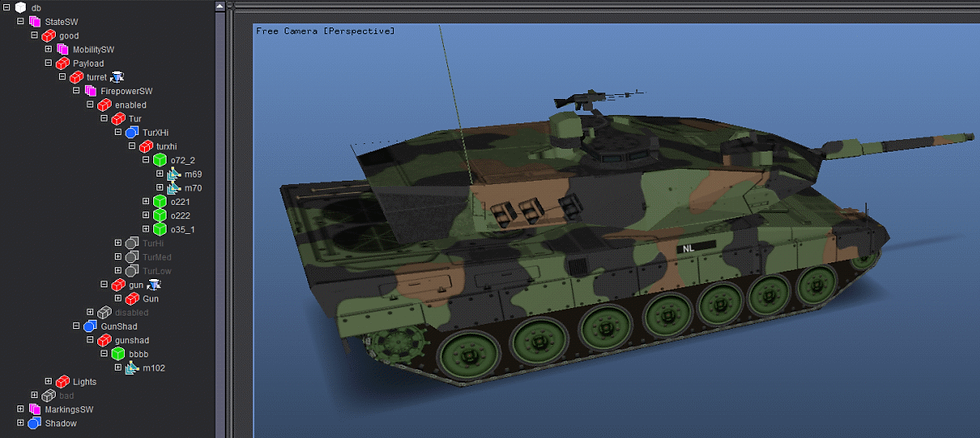
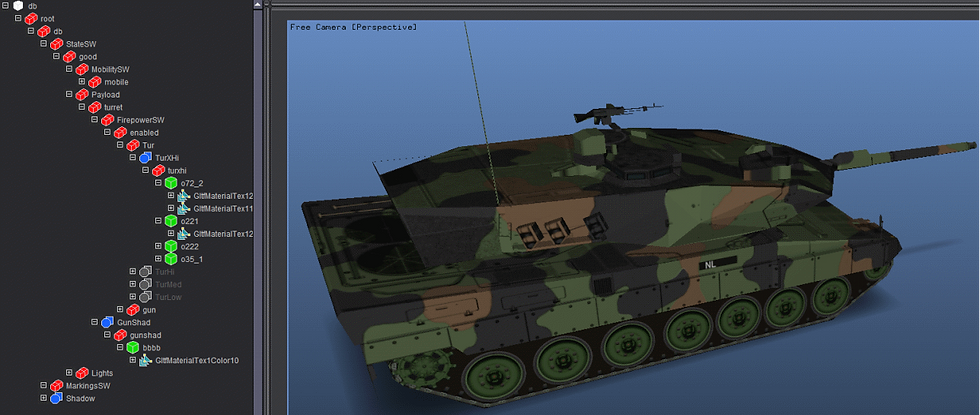
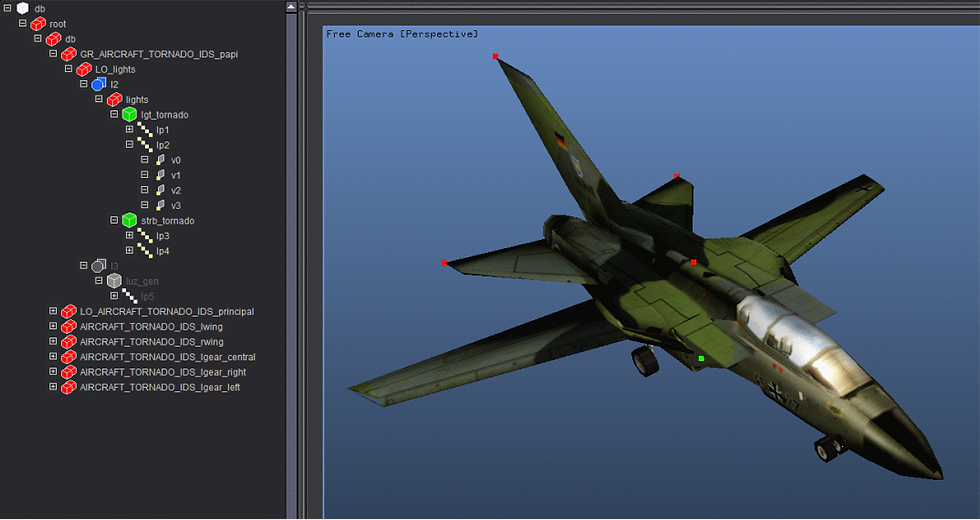
⦁ Added a new plugin - Delete Unused Materials. This plugin checks if any of the materials in the palette are not being used (referenced by RenderGroup or Polygon types) and removes them from the palette. All nodes that do reference materials have their material palette indices updated to their materials new palette location. Added two new GLTF user Preferences...
Convert Point Geometry to LightPts On Load
Save LODs using Carbon Graphics GEO_LOD Node Extension
⦁ The first preference assumes Points should be treated as LightPt Nodes. If unchecked a Polygon Node with DrawStyle Points will be created. The second preference provides the option to save LODs when exporting as GLTF. Note: the GEO_LOD Node extension is not approved or ratified by Khronos and will not work as expected outside Geo STUDIO. If you uncheck this preference then only the active LOD will be exported. The active LOD is usually the closest (or highest) LOD but explictly setting the active LOD (using the Least, Less, More & Most menu commands) allows you to save discrete LODs as separate GLTF files if needed.
⦁ Found a bug in the Decompose PrimSets plugin. Under certain circumstances the plugin would incorrectly set the UV_Set for a textured PrimSet Prim - making the texture wash out on the decomposed Mesh nodes. This has now been fixed.
⦁ Added a new GLTF user Preference - Make Model Y-Up On Save. The GLTF specification expects GLTF models to be built "Y-up". If the model being saved is natively "Z-Up" (i.e. it was an imported OpenFlight or Aechelom Hie format file) then this preference will add a rotate transform (around the X-Axis) to correctly orient the model for GLTF. If this is unchecked a natively "Z-Up" model will not manipulate correctly in a GLTF viewer or application. The option is available in case the target runtime expects GLTF models to be built "Z-Up". The saved-model's Up-Axis value (and orientation) is not effected within Geo.
⦁ Added a new SpecialFx property to Group nodes. This identifies the Group as a special type and is directly used by the HieExporter to write a special Hie Group node type to the Hie file. This only happens when the Group node is of type Group (meaning not any node derived from a Group - such as an LOD or RenderGroup). Since derived Group node types also display the base Group properties in their property panel - setting the derived node's SpecialFx property will have no effect. The only exception to this rule is a CullGroup - when exporting a CullGroup the Group SpecialFx property is checked to see if AUTOCG (instead of CG) should be written to the file. The possible SpecialFx values are...
NONE (G)
PRESERVE_ORDER (GPRESERVEORDER)
NO_THERMAL_IR (GNOTHERMALIR)
THERMAL_IR (GTHERMALIR)
NO_SWIR (GNOSWIR)
SWIR (GSWIR)
NO_NVG (GNONVG)
NVG (GNVG)
NO_RADAR (GNORADAR)
RADAR (GRADAR)
NO_LIGHTS (GNOLUX)
AUTO_CULL (AUTOCG)
⦁ We have revamped and simplified Geo Product Activation for Closed or Air-Gapped networks. This is common for Military or customers with sensitive data. Users now use Geo STUDIO to generate a Request.txt file on the target PC. This file should be sent to Carbon Graphics. We will generate and send back an Offline.lic file. Simply drop the file in the same folder as the Geo STUDIO executable and start Geo. The LicensingGeo.pdf document has be updated with full details.
⦁ A new documment: AechelonHieSupport 4.1.pdf has been added to the <Geo Install directory>/Docs folder. This document covers Aechelon Hie formats support in Geo STUDIO Pro 4.1
⦁ The Hie format supports up to 64 user-defined Analog Controls (variables) that are used to drive component animation within models (fully supported in Geo) and control the display of sub hierarchies within a model (not previously supported). The controls are defined in a runtime Interface Control Document (ICD) that is simulation wide and not available to Geo when loading discrete simulation models. Since a model can refer to one of the ICD variable "slots" - the Hie Importer now generates 10 User Vars using the Aechelon ICD naming convention to simulate access to the ICD and allow these behaviors to be created and tested within Geo. The vars are named: ICD_artic_val0, ICD_artic_val1, ICD_artic_val2 etc.
⦁ Geo Switch node's have added Analog Control variables for managing runtime sub-hierarchy display. Hie format SW nodes of type SW_analog are imported as Geo Switch Node's of type NAMED_TOKEN (as opposed to BITFIELD_MASK) with their NamedType set to AnalogControl. The ICD Analog Controls referenced in the Hie file are mapped to the appropriate ICD_artic_val# variables mentioned previously. NOTE: These vars are created with an initial value of 1.0. Runtime behavior is based on the Switch Node's Analog Variable value...
If the value is < 1.0 no children are drawn
If the value is >= 1.0 and less than 2.0 then child# 1 is drawn
If the value is >= 2.0 and less than 3.0 then child# 2 is drawn
etc.
⦁ The Variable Override Editor can be used to dynamically update Analog Control variable runtime values for easy creation and testing. Also note that Switch node AnalogControl vars can also be updated when Behavior Mode is not active.
⦁ We used a great Geo STUDIO feature to work-around a minor problem with our Hie Exporter pipeline! Unfortunately, the export will fail if any PrimSet nodes are detected. This is doubly-unfortunate because the importer builds PrimSets as an oprtimization step if the Hie on-load user preference Build Optimized Renderer has been set!. Since this brings noticable performance improvements it is highly desirable. The solution is to use Geo's File I/O Pre-Execute and Post-Execute functionality.
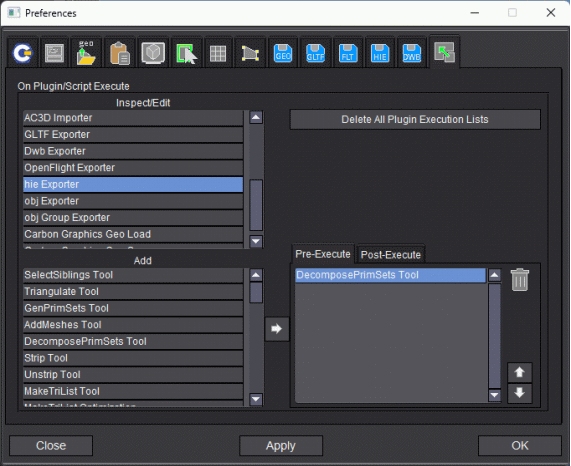
What this means is that just prior to calling the Hie Exporter plugin the DecomposePrimSets plugin is called which does as its name sugggests and converts the bundled PrimSets into their discrete Meshes - which is the ideal structure for export into Aechelon's binary geometry files. Have executed the "Pre" list of actions, the Hie Exporter proper is called to save the file. After completion the "Post-Execute" plugin list (if any) is called. You can see from the image below that the AddMeshes plugin will be called...
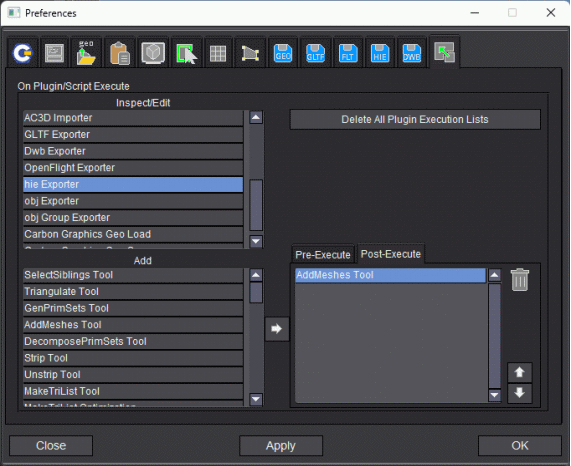
The AddMeshes plugin collects all the meshes and converts them into optimized PrimSet Nodes once more. all accomplished, effectively, in the singe Hie export operation.
NOTE: a tempting alternative plugin to use is the GenPrimSets plugin, but in this case the AddMeshes plugin is better (and much faster) because It skips the triangulation and stripping steps that the GenPrimSets plugin does.
⦁ The Hie format ATTACHMENTPOINT token is now handled by the Hie Importer. When this is encountered a Geo Point node is created and the Attachment ID set. Similarly, the Hie Exporter exports Geo Point Node's (that have an Attachment ID set) as an ATTACHMENTPOINT [ID#] under a Hie SCS node.
⦁ We found a serious bug in various plugins that convert between polygon-types (i.e GenPrimSets, DecomposePrimSets, Strip, Unstrip & MakeTriLists). Under certain conditions unecessary Scene-Graph traversals were being invoked - resulting in a serious performance hit. This has now been fixed.
⦁ Opening the Property Extension Editor when clicking on the Add/Edit Extensions button in the NodeType Attribute Extensions tab caused the editor to open with an incorrect dialog height (4706 pixels versus the correct 470 pixels). This typo has now been fixed.
⦁ Fixed some OpenGL bugs associated with Multi-Texturing of polygon-types that do not use Extended Materials.
⦁ Textures of common image types (.png, .jpg etc.) now display correctly in the Texture Palette (i.e. automatically flipped vertically to align with OpenGL orientation). Previously these images would be displayed with their origin set to the top left of the image in the palette - even though the texture was auto-flipped for OpenGL.
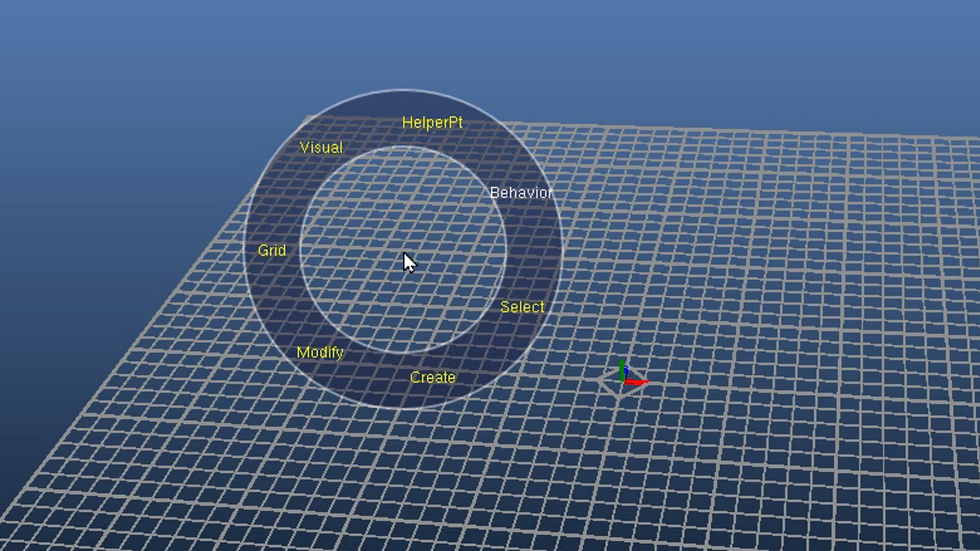
⦁ We have improved the Radial Menu System and added many useful tools that were either previously missing or unavailable in a particular context (e.g. Group selection context menu, vertex normal calculation, Freeze flags etc.). The Radial menu is context sensitive and opens on Right Mouse button down (after a short delay if the mouse is not dragged). To pop the Radial Menu without delay - press the Ctrl key + Right Mouse Button down.
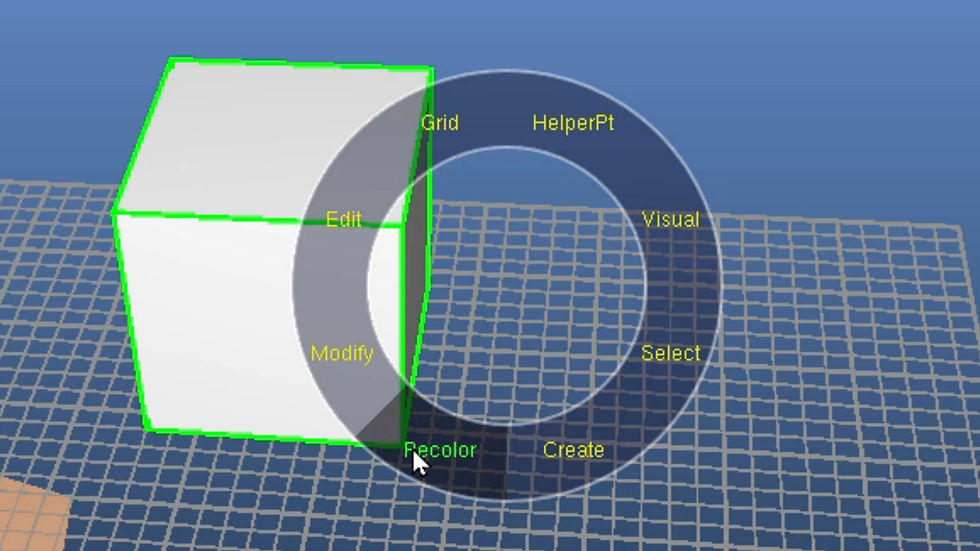
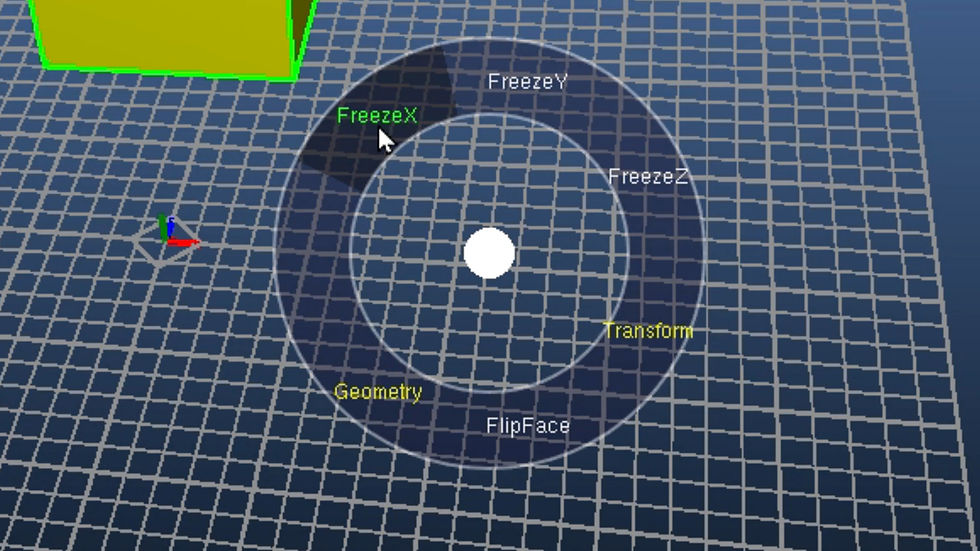
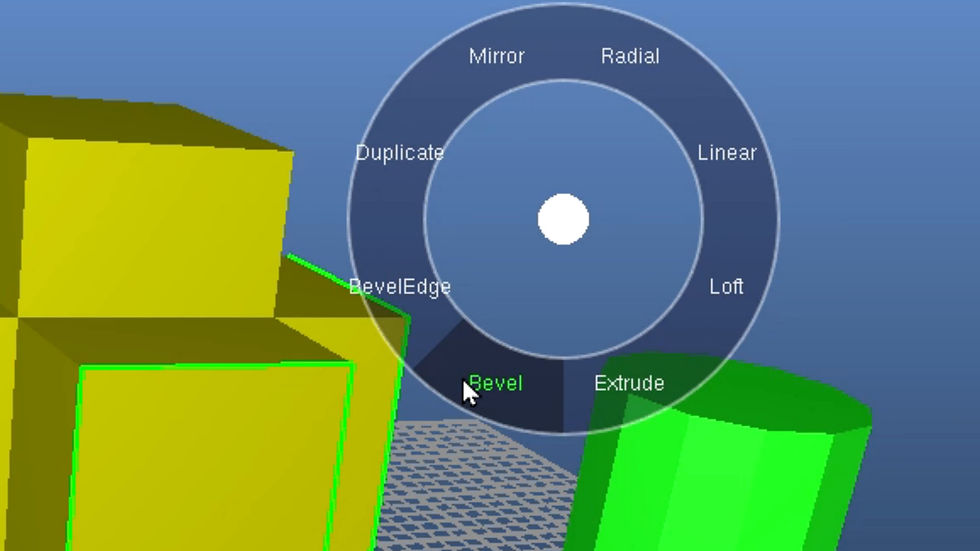
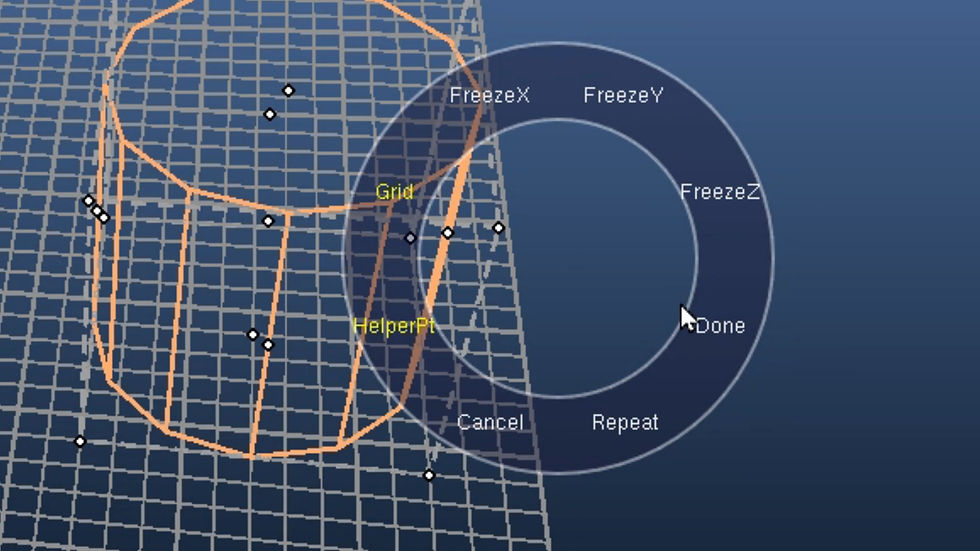
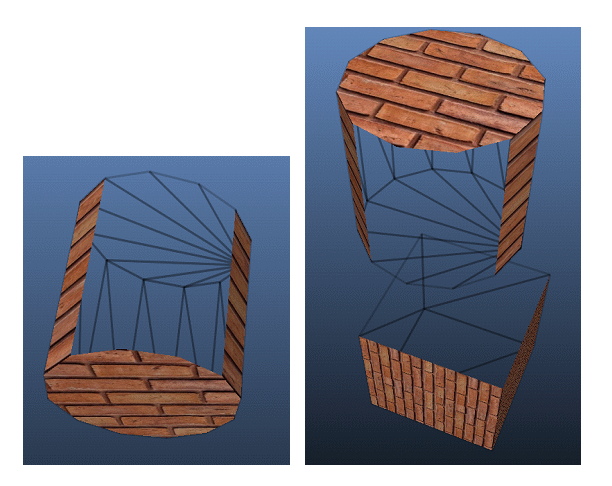
⦁ Geo has a new drawstyle mode: Mixed. Mixed drawstyle renders front facing polys as Solid & back-facing polys as Wireframe. This mixed approach is a great option when viewing and working with your models. All back facing polys are rendered correctly, i.e. only the back faces that are not occluded by front facing polys are rendered in wireframe.
NOTE: The D-Key allows you to cycle through the available draw styles - Solid, Wireframe, Wire over Solid (outline), and Mixed. Here are some simple example of Mixed DrawStyle...
⦁ There is a new keyboard shortcut - CTRL+h - This will toggle Hover Highlighting on/off. Hover highlighting is effective when the model is built with multiple discrete polygons or meshes. However, it is less useful when the model geometry is a large Triangle List or PrimSet nodes with multiple meshes. In the example below a GLTF model was loaded which grouped the solar arrays and station truss into one TriList Mesh. Since the hover highlighting "highlights' when the mouse is over the geometry and not when its over the desktop or another primitive node - it can result in annoying flashing. If the poly-under-mouse highlighting is annoying use this shortcut to turn it off.
⦁ We've added new tool and other video tutorials to the Carbon Graphics web site. The original video tutorials that shipped with the Geo installer are also on the site and are longer bundled in the installer.
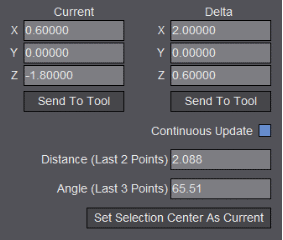
⦁ Some Coordinate Input Panel bugs relating to the calculation of the distance (between the last two points) and angle (between the last three points) have been fixed.
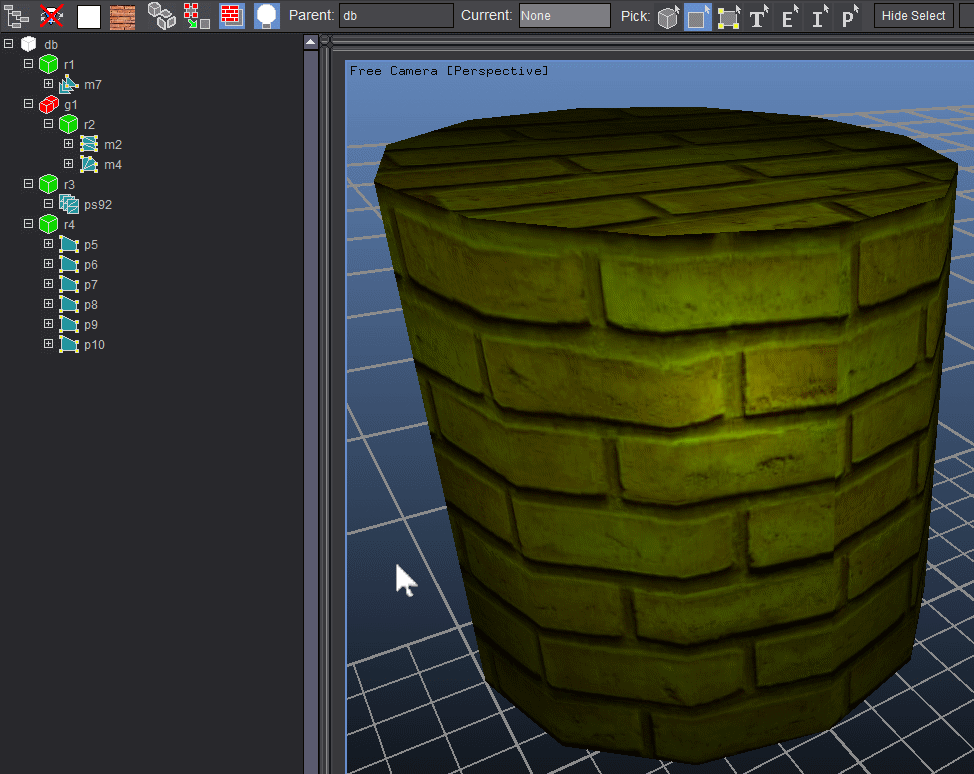
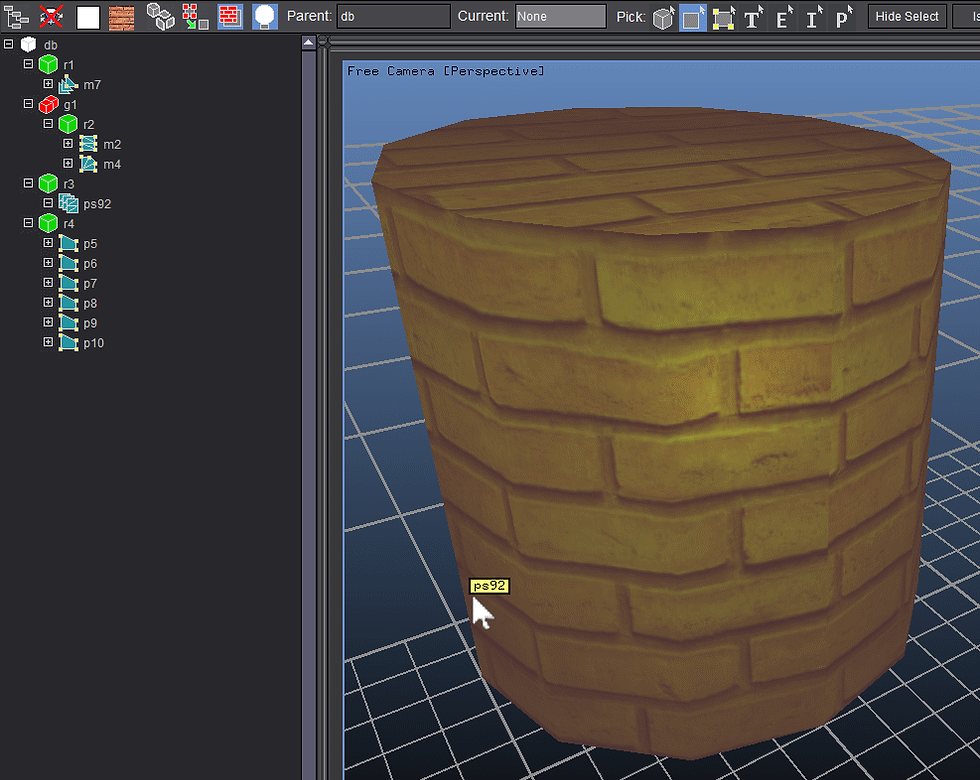
⦁ Added a new PickMode type. The new Component Part PickMode allows you to pick individual triangles contained within Mesh nodes of type Triangle-List and individual Mesh nodes within a PrimSet node. These are the two main aggregate situations within Geo that can contain a lot of geometry. Being able to select a subset of their geometry allows you, for example, to modify the selection without having to triangulate the entire Triangle list or decompose all meshes in a PrimSet. Fence selection and Control+Pick additive selection functionality works as expected. For example...
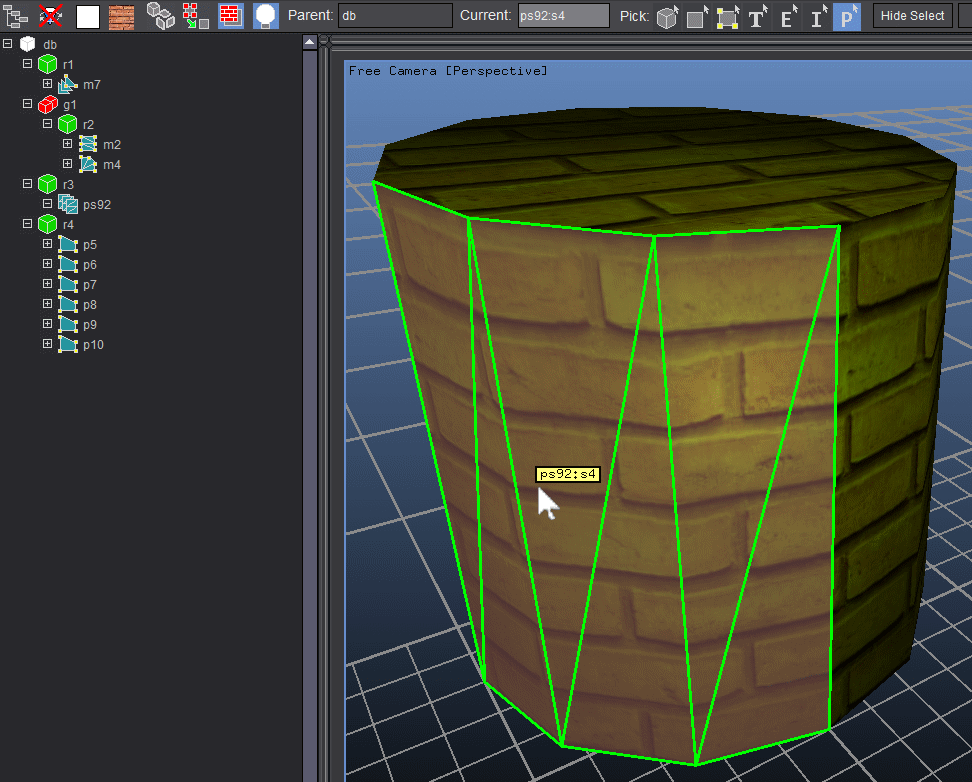
⦁ Added a new RemoveMeshes plugin. This plugin acts on the Component Part selection list and removes the selection of triangles or Meshes (as seen in the last image above) from their parent Node(s) and converts them into discrete editable nodes. In the above example: "ps92:s4" will become a new Mesh node parented under the PrimSet parent.
⦁ Added a new MergeMeshes plugin that combines a multi selection of Mesh nodes of type Triangle-list into a one Mesh node.
⦁ The GLTF exporter sometimes generated GLTF files that could Fail Khronos Format Validation. This has now been fixed.
⦁ We've finally added a new Khronos GLB export plugin. GLB format files are binary files that contain all geometry and image data in a single file with no external dependencies (like external texture file references). This simplifies and reduces file sharing errors (i.e. missing texture files) as well as improving load and rendering performance.
⦁ Previously loading any model would always orient the model as if the model was a .geo file (i.e. a model built 'Y-Up' with the view direction on the Z-Axis looking towards the model center). This meant that when you loaded an OpenFlight or Aechelon Hie model, the initial view direction was looking down on the top of the model (because OpenFlight and Hie are modelled 'Z-Up'. ). Now the model's initial orientation is correctly set depending on the import format type...
Geo: Viewing down the Z-Axis to the model center.
OpenFlight: Viewing down the Y-Axis to the model center.
Aechelon Hie: Viewing down the Y-Axis to the model center.
DWB: Viewing down the Z-Axis to the model center.
GLTF: Viewing down the Z-Axis to the model center.
GLB: Viewing down the Z-Axis to the model center.
OBJ: Viewing down the Z-Axis to the model center.
NOTE: The Obj format doesn't specify an "up direction" but by convention are typically 'Y-Up'. If you load an Obj file that was built (or saved) 'Z-Up' remember to set the Header Node's 'Up-Axis' property to Z-Up.
The view direction is also rotated 25 degrees up as shown in the image below (an imported OpenFlight file)...
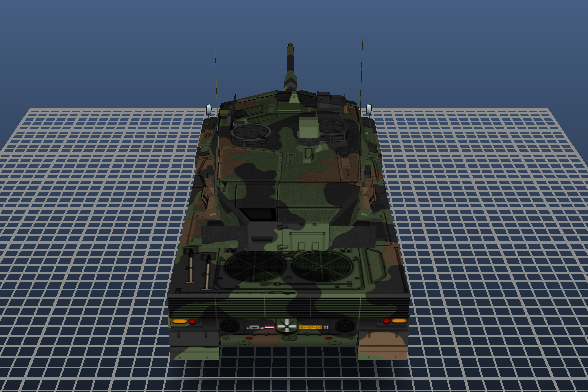
⦁ Previously switching between loaded files didn't display the previous or next loaded file's position and orientation correctly (they were being positioned and oriented according to the pre-switch file's position and orientation!). This has now been fixed.
⦁ Fixed the View Menu->Snap Trackball options. These are...
View From Model's X-Axis to Model's YZ-Plane (Keyboard Shortcut: ALT+X)
View From Model's Y-Axis to Model's XZ-Plane (Keyboard Shortcut: ALT+Y)
View From Model's Z-Axis to Model's XY-Plane (Keyboard Shortcut: ALT+Z)
Here is an OpenFlight model oriented after snapping the trackball to the Z-Axis...
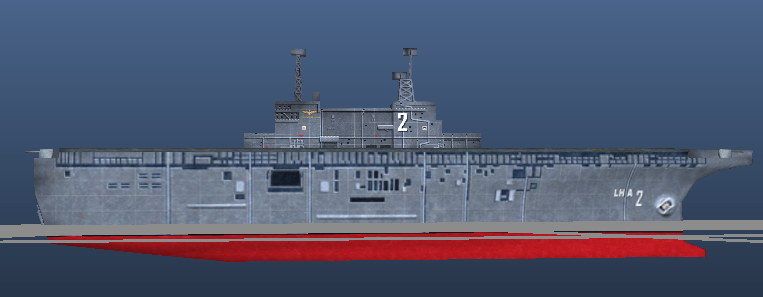
⦁ Picking Geometry (either Groups, Faces, Vertices or Mesh/PrimSet Component Parts) has been Improved for Fence Selection. If you Disable Back Face Culling (Keyboard Shortcut: b-Key toggles backface culling on/off) and Fence Select - the Selection List will contain all Front and Back Facing items within the Fence.
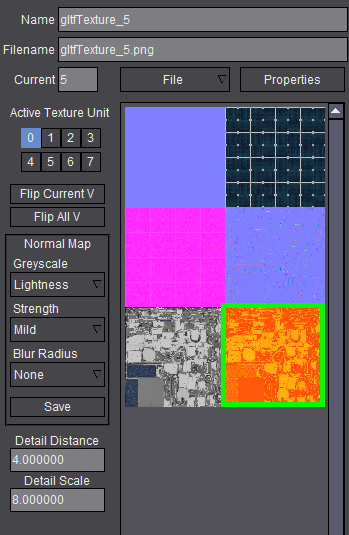
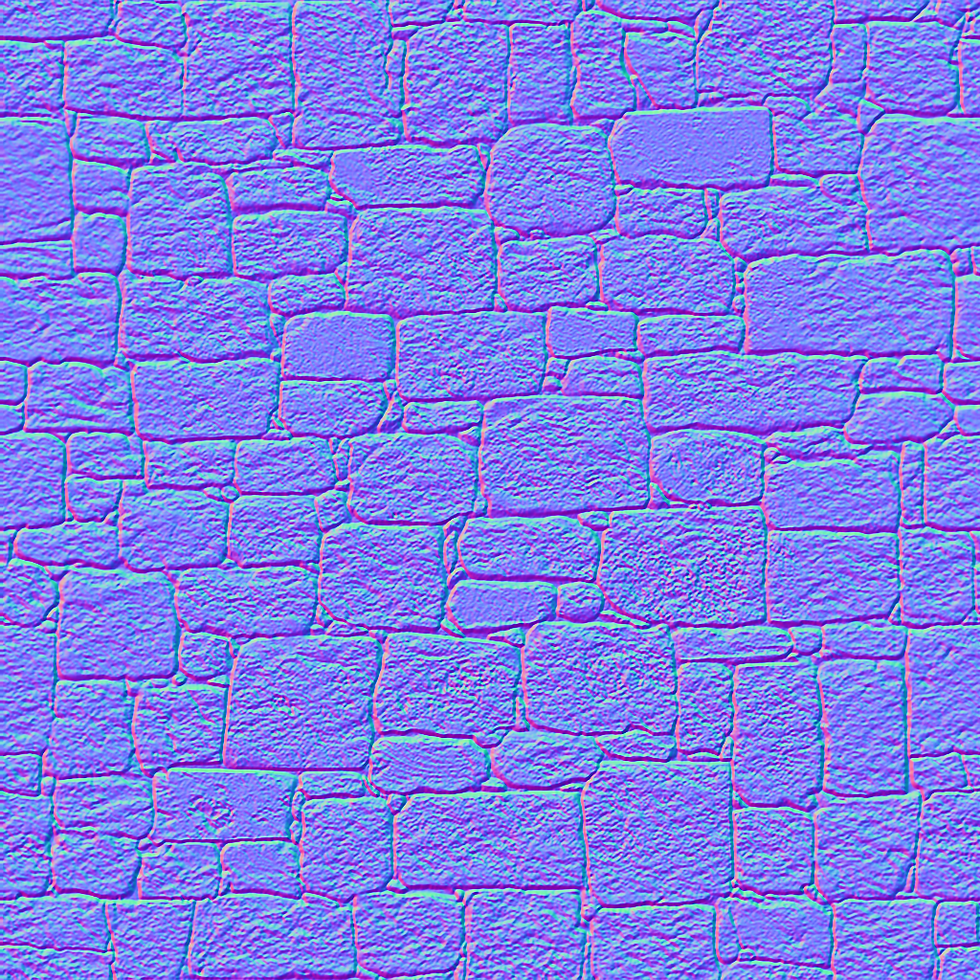
⦁ We have improved the Save Normal Map functionality. Its a convenience process to generate a Normal Map from RGB colors. You can now specify the intermediary grey scale conversion approach used (either Lightness, Average or Luminosity) along with Strength and Blur factors to fine-tune the Normal Map result. Here's the updated UI and a Normal Map that was generated...


Comments