
Geo STUDIO Pro Version 4.2 RELEASE NOTES
- Jun 25
- 7 min read
⦁ The application and Geo Format VERSION have increased to 4200 (4.2)
⦁ Added a new User Preference Tab to the Preferences Dialog. The new tab is for the Wavefront Obj file format with the (currently only) preference being Build Optimized Database on load. This acts like the other file importers and converts the loaded scene graph from a collection of discrete Faces to Mesh Nodes of type: TRIANGLES (if the preference is set). The number of mesh nodes is dependent on the number of groups and unique materials referenced within the groups. This preference is set by default.
Since the OBJ format is a long standing generic polygon interchange format you can encounter files that were created in CAD or DCC tools and were never intended for real-time applications. Files with > 100,000 triangles (where geometry defines complexity, rather than textures) are common!.
TriList creation is done in a background thread so the GUI becomes reponsive much sooner.
⦁ We've improved the plugin/tool execution architecture with real improvements in the editing workflow. You can now invoke a new tool even if another tool is currently active (this was previously prohibited). The existing tool is paused and pushed onto an active tool stack and hidden from view . When you complete the interupting tool (either by clicking [Done] or [Cancel] in the tool GUI or via the Radial Menu system) the previously active tool is immediately restored to its prior state.
This behavior is for interactive tools. (i.e. tools that require dynamic input and typically present a tool-specific GUI). Non interactive tools (i.e. one-shot operations with no tool GUI) can be called when an interactive tool is active as always.
Lets say that mid-way through creating a Polygon you realize that no vertex exists at a location you need for your new Poly (i.e. to keep it planar or convex etc.). Simply invoke one of the HelperPt (AKA Construction Point) Tools to add a usable HelperPt exactly where needed. As soon as the HelperPt tool completes, the Polygon tool resumes and you can snap on the HelperPt to complete your Poly.
⦁ Some Helpful interactive Grid Tools include...
Plant Grid (Move/Orient the Grid to the plane of a selected Poly).
Plant Grid (Move/Orient the Grid to a plane defined by 3 grabbers)
Move Grid Origin
Move Grid up/down its normal
etc.
⦁ Some Helpful interactive HelperPt Tools include...
By Mouse
On Edge
On Line Interval
On Line/Line (or Edge/Edge) Intersection
On Point/Plane Intersection.
On Line/Plane (or Edge/Plane) Intersection
On Point/Line (or Point/Edge) Intersection
etc.
⦁ The default Tool Radial Menu has been updated with interactive Grid and HelperPt tools for quick and easy edits during Create, Modify and Appearance tool operations.
⦁ Found a serious bug in Selection Management - noticable when the model had a high triangle count ( i.e. 100,000+ triangles). Selection Management includes Picking, FenceSelection, Isolate, Hiding the Selection and Showing All (un-isolate). The bug caused Poly-type node's to be uneccesarily flagged as "dirty", which caused a rebuild of the Picking Scene Graph, Component Part info (for Meshes of type Triangles and PrimSet nodes) and Optimized Renderers. When the model had a huge number of triangles the effect on performance (in these operations) was severe. These logic errors have now been fixed. Interacting with large triangle-count models is now instantaneous.
⦁ Improved the Shrink Faces behavior. Previously this was a global state that toggled when the K-Key was pressed. The K-Key now shrinks the poly faces for any selected Group or Poly-type nodes. The shrunken state is retained (even if you Deselect All) until you press the new J-Key shortcut (which will UnShrink all Poly-types that are using Shrink Coordinates). This means you have access to discrete poly verts during tool operation and vertex selection.
⦁ You can now shrink Mesh Nodes of type TRIANGLES and PrimSet Nodes (this was previously not supported).
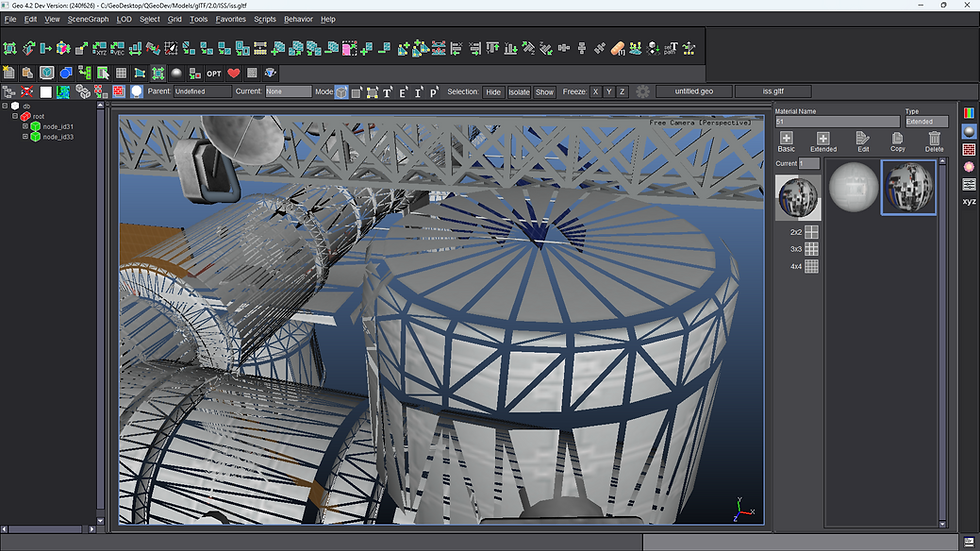
⦁ We've added a New Selection Draw Style Preference - ColorBlend. This is an alternative to the existing Wireframe and BBox selection draw styles. ColorBlend overlays a solid filled/blended surface (in the current Selection Color Preference) over the standard Poly-type's rendering. Easily identifying the Poly-type as selected while still showing the Poly-type's material and texture usage. This selection draw style is useful if the selection contains many triangles (i.e. a high-triangle GLTF model). In those cases the ColorBlend style may be preferrable as it declutters the scene and makes it easier to work with high-triangle count selections. The images below compare the visual difference between Wireframe and ColorBlend on a selected Group.
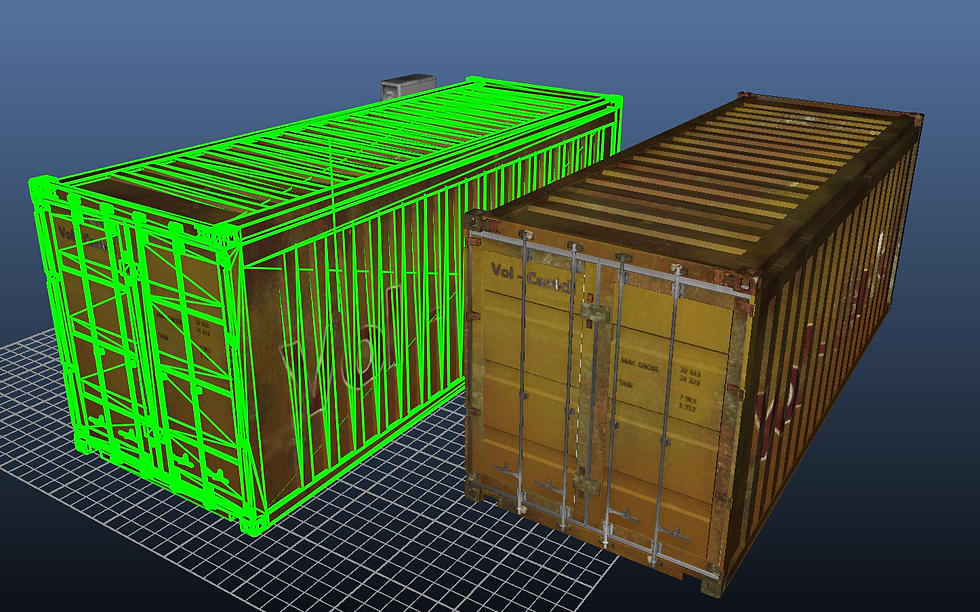
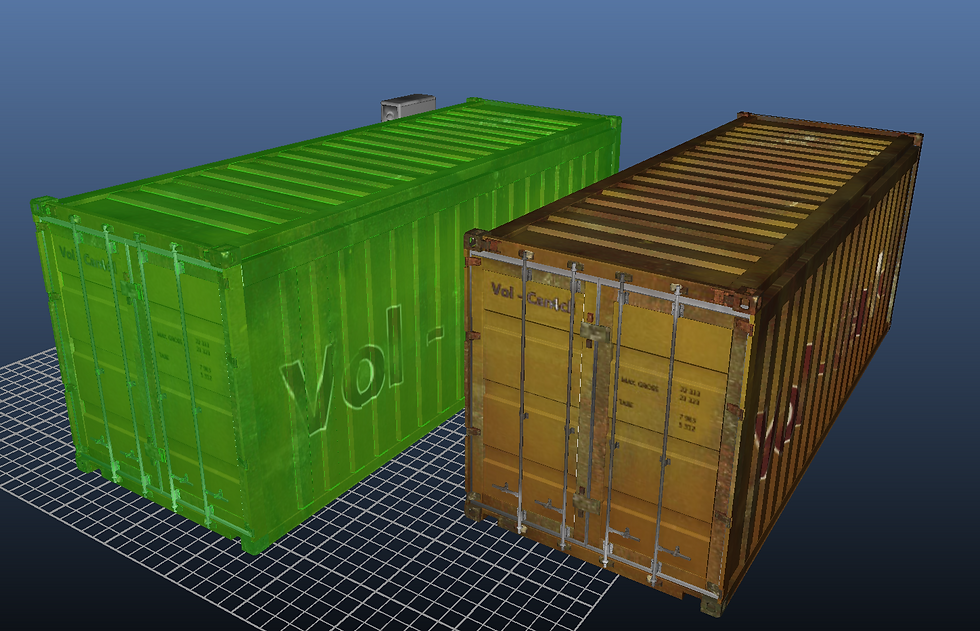
⦁ Modified the behavior of the Move Vertex Tool. By default when you grab and move a vertex - it moves all vertices that share the selected vertex location. Now if you grab a vertex on a poly-type that has been Shrunken (using the K-Key, as described above) - you'll only move the vertex of the shrunken poly.
⦁ Simplified the RenameNodes plugin. This has now been split into two plugins - Rename Groups and Rename Poly-Types. The RenameGroups plugin sequentially renames all RenderGroups (i.e. r1,r2,r3 etc). The Rename Poly-Types plugin sequentially renames all poly type nodes but with an appropriate node-type prefix (i.e. p1, p2, p3, m4, ps5, lp6, m7 etc.). This is handy if the file is being exported to OpenFlight which expects node names to be unique.
⦁ Previously, if you saved a loaded GLB file as a Geo (.geo) file - the embedded texture image data within the GLB file was not saved alongside the .geo file. This has now been fixed with each embedded texture image written as a discrete PNG file.
⦁ If you export a loaded GLB file in OpenFlight format - any embedded texture image data will be written to disk as SGI RGB files. The GLB file's PBR Materials will be converted to the equivalent Extended Material components. Extended Materials are supported in OpenFlight version 16.4 or greater. The conversion is as follows...
The PBR base color texture will transfer to the Diffuse Material Component Texture0 slot.
The PBR normal texture will transfer to the Normal Material Component texture.
The PBR emissive texture will transfer to the Emissive Material Component texture 0 slot.
⦁ Fixed a bug and improved the behavior of the Material Editor. If a material is being edited (i.e. the Material Editor is open) and you click on a different material in the material palette (which makes it the current material). The new material's properties will be shown in the editor. Previously, this behavior left the Material Editor in a undefined state. NOTE: Any changes to the previously edited material are accepted (and cannot be automatically reverted) before updating the material editor.
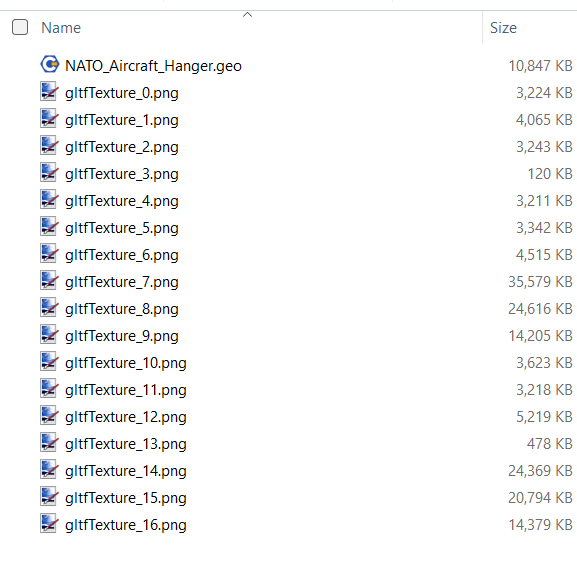
⦁ Previously the GLB importers did not use the image name property (if it existed in the file) - instead generating default texture names like gltfTexture_0, gltfTexture_1 etc. This meant that exporting GLB files would create image files like gltfTexture_0.png, gltfTexture_1.png etc. in GEO format, gltfTexture_0.rgb, gltfTexture_1.rgb etc. in OpenFlight format and gltfTexture_0.tx, gltfTexture_1.tx etc. when exported in Aechelon Hie format. The name property (if present) can result in much more meaningful file names. The following images highlight the difference...
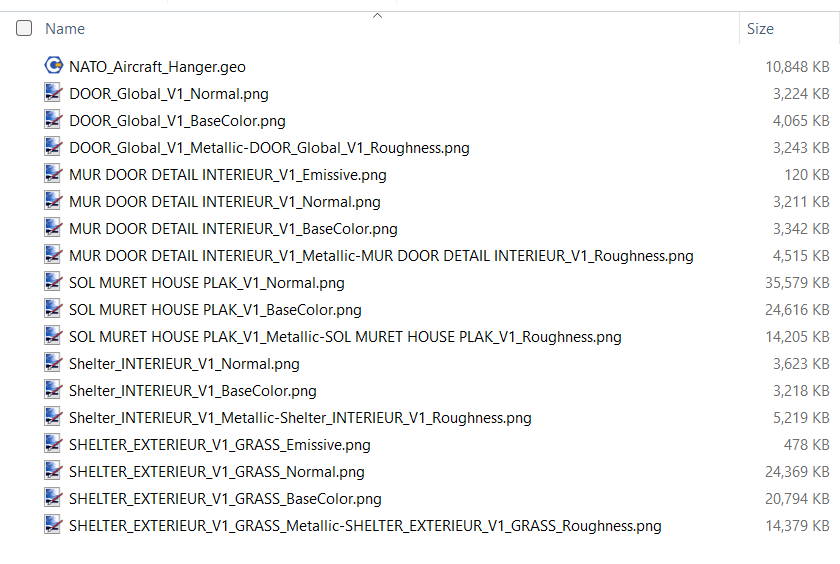
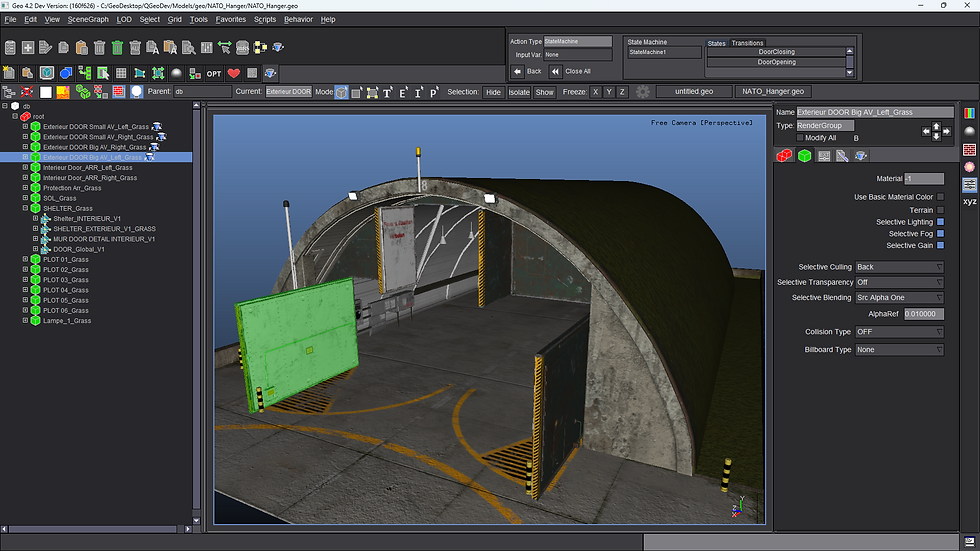
⦁ Previously, Geo set an upper-limit on the number of triangles that a GLTF/GLB file could have to 100,000! The importer plugins would silently fail if the imported file exceeded that number of triangles. This has now been fixed and the limitation removed.
⦁ Due to our ongoing optimization efforts Geo can now handle models with up to One Million Triangles - although this will depend on individual hardware configurations.
⦁ We've added a new View Preference - Clamp Texture Resolution. If this preference is set, the maximum width/height dimension of all textures is clamped to a user-specified size. This option is usefull if you load a model with many 4K textures as this can max out the VRAM on your graphics card.
⦁ Added a new tutorial video to the carbongraphics.net/videos page - it adds state-machine driven behaviors to control the opening and closing of the four blast doors highlighted in the NATO Hanger model (the soure GLB file) shown above. The behavior is triggered by the Geo internal variables: Trigger1 and Trigger2 which are bound to the keyboard's 1 and 2-Keys for easy debugging and testing within Geo. The Complete behavior logic (including state-machines) can be exported in Geo, Aechelon HIE and DWB formats. Exporting the behavior to OpenFlight format will create the corresponding DOF nodes
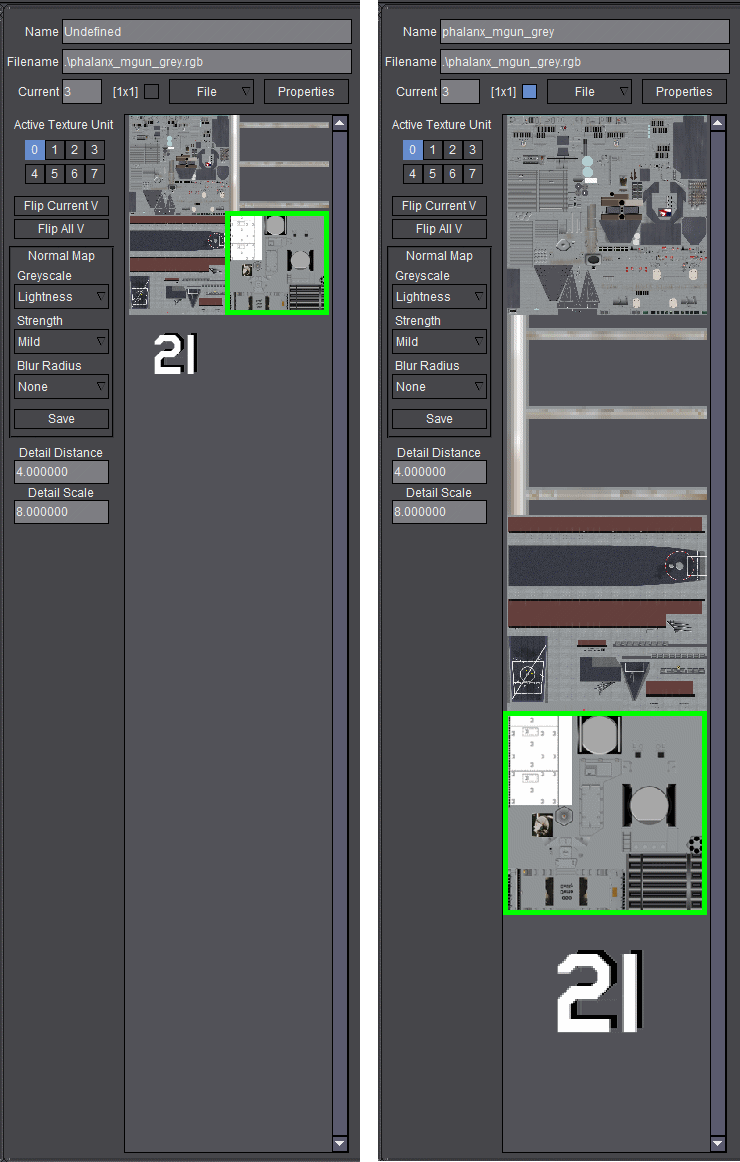
⦁ You can (optionally) show larger texture thumbnails in the texture palette. This can be usefull if the normal texture palette image size doesn't provide enough resolution to easily identify a particular image. Also note that you can double click on a Texture Palette image to open the texture in a full-size window. The images below showcase the different Texture Palette layouts.
⦁ The loaded files breadcrumb bar now shows a pop-up tooltip with the full path and name of the file button it represents. This can be useful if you have multiple similarly-named models or the filename on the button is truncated to fit.
⦁ Fixed a bug related to the import of files with more than 100 textures. In that case texture palette indicies >= 100 would recycle used OpenGL textureID's, assigning the wrong texture object to the palette texture This obviously resulted in invalid texture display. This has now been fixed and there is no limit (in Geo) to the number of textures that can be handled on a per-model basis.
⦁ Fixed a bug in the Wavefront OBJ importer related to the creation of valid PBR materials. Under certain circumstances the file would be loaded without materials. This has now been fixed.
Creator, and OpenFlight were developed by, and are registered trademarks of, Multigen-Paradigm (MPI) & currently maintained by Presagis Inc.


Comments